Configure Windows Firewall Rulesets in the Library
A Windows Firewall Ruleset contains a collection of Windows Firewall Rules that you can apply to managed devices. Each rule controls a specific aspect of the device. For example, a rule can block applications, services or IP ranges on target devices. You can apply multiple Windows Firewall Rulesets to a single device.
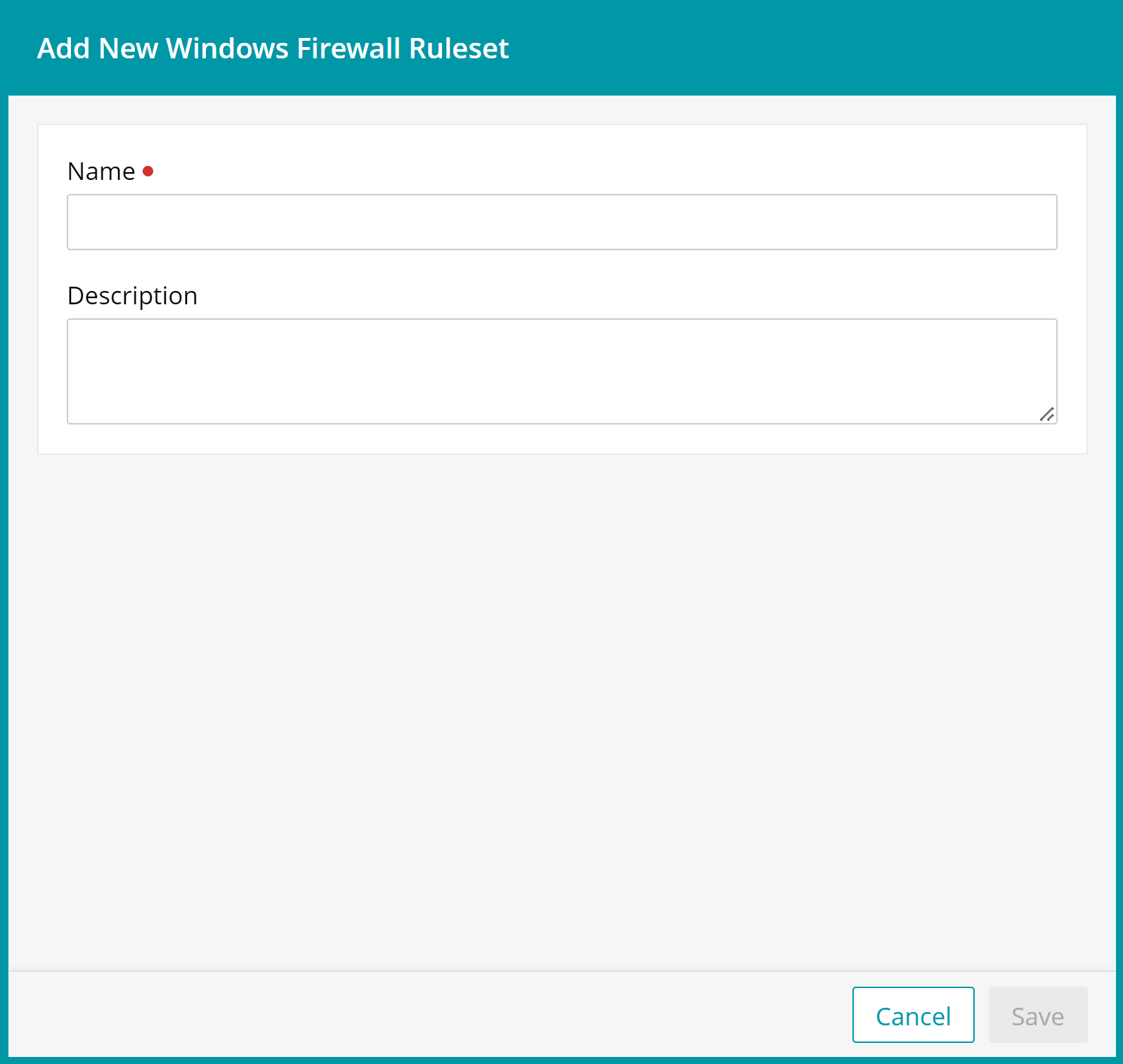
To create or edit Windows Firewall Rulesets:
- Select the Libraries tab in top navigation.
- Click Security.
- Complete one of the following steps:
- To create a new Windows Firewall Ruleset, choose Add New > Windows Firewall Ruleset, and specify the ruleset's name.
- To edit an existing Windows Firewall Ruleset, select it in the list.
- Add a rule to the ruleset.
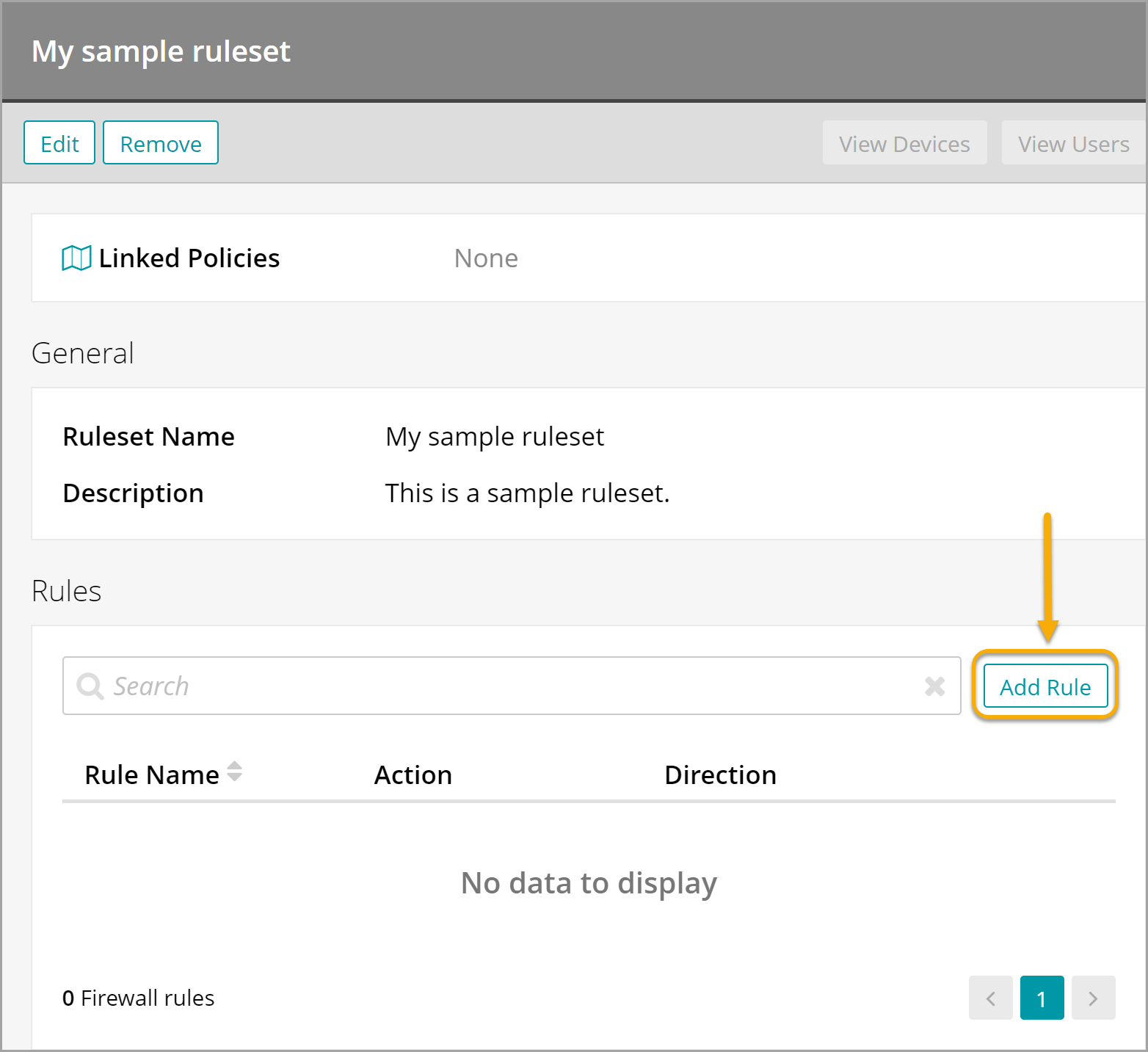
- In the Windows Firewall Ruleset view that appears on the right, click Add Rule.
The Add Firewall Rule view appears.
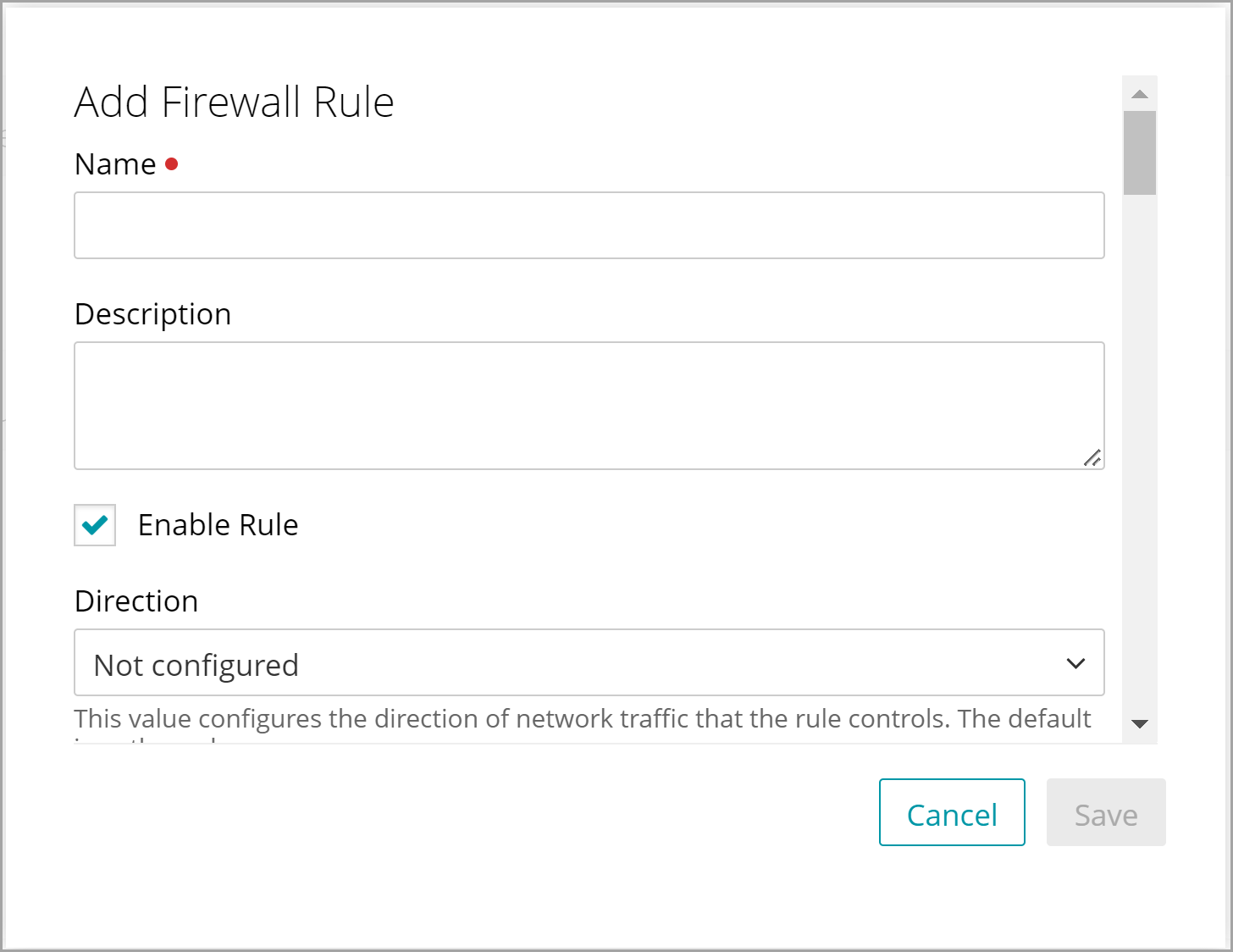
- In the Add Firewall Rule view, provide the following information:
Option Description Name The name of the rule. Description A short description of the rule. Enable Rule Indicates if the rule is enabled on the device. New rules are enabled by default and this field can be used for troubleshooting purposes. Direction When configured, indicates the direction of network traffic that the rule controls: Inbound or Outbound. The default is Outbound. Action When configured, specifies the action the rule enforces: Blocked or Allowed. The default is Allowed. Interface Type Applies the rule to a specific interface type: Remote Access, Wireless, LAN, or a combination of the three. If not specified, the default is all interface types. Network Profile Applies the rule to one, more or all of the Windows Firewall networks: Domain Networks, Private Networks, or Public Networks. The default is to apply the rule to all networks. Package Name The package name of the Microsoft Store application that you want to control with this Firewall rule. For details on how to block a Store app, see Blocking Windows Store apps on devices. File Path The file path on the local device drive that you want to control with this Firewall rule. For example, C:\Windows\System\Notepad.exe. Service Name When a service, not an application, sends or receives data, this is the name of that service. Protocol A number in the range between 0 and 255 representing the IP protocol (TCP = 6, UDP = 17). If not specified, the default is All. Local Port Ranges A comma-separated list of local port ranges. For example: 100-120,200,300-320. If not specified, the default is All. Remote Port Ranges A comma-separated list of remote port ranges. For example: 100-120,200,300-320. If not specified, the default is All.
Local Address Ranges List of comma-separated tokens specifying the remote addresses covered by the rule. Valid options include:
- * specifies any remote address. If this setting is used, this must be the only character included.
- A subnet, specified using either the subnet mask or network prefix notation. If neither a subnet mask nor a network prefix is specified, the subnet mask defaults to 255.255.255.255.
- A valid IPv6 address.
- An IPv4 address range in the format of <start_address> - <end_address>, with no spaces included.
- An IPv6 address range in the format of <start_address> - <end_address>, with no spaces included.
Remote Address Ranges A list of comma- separated tokens specifying the local addresses covered by the rule. Valid options include:
- * indicates any local address. If present, this must be the only character included. This is the default value.
- Defaultgateway
- DHCP
- DNS
- WINS
- Intranet
- RmtIntranet
- Internet
- Ply2Renders
- LocalSubnet: Indicates any local address on the local subnet. This token is not case-sensitive.
- A subnet, specified using either the subnet mask or network prefix notation. If neither a subnet mask nor a network prefix is specified, the subnet mask defaults to 255.255.255.255.
- A valid IPv6 address.
- An IPv4 address range in the format of <start_address> - <end_address>, with no spaces included.
- An IPv6 address range in the format of <start_address> - <end_address>, with no spaces included.
Local User Authorization List Specifies the list of authorized local users for this rule. This is a string in Security Descriptor Definition Language (SDDL) format. If not specified, the default is all users. Edge Traversal Indicates whether edge traversal is enabled or disabled for this rule. Edge traversal indicates that specific inbound traffic is allowed to tunnel through NATs and other edge devices using the Teredo tunneling technology. In order for this setting to work correctly, the application or service with the inbound firewall rule must support IPv6. The primary application of this setting allows listeners on the host to be globally addressable through a Teredo IPv6 address. This setting is disabled by default. - In the Add Firewall Rule view, click Save.
- In the Windows Firewall Ruleset view that appears on the right, click Add Rule.
- Add more rules to the Windows Firewall Ruleset, as required.
- When done, in the Windows Firewall Ruleset view, click Save.